
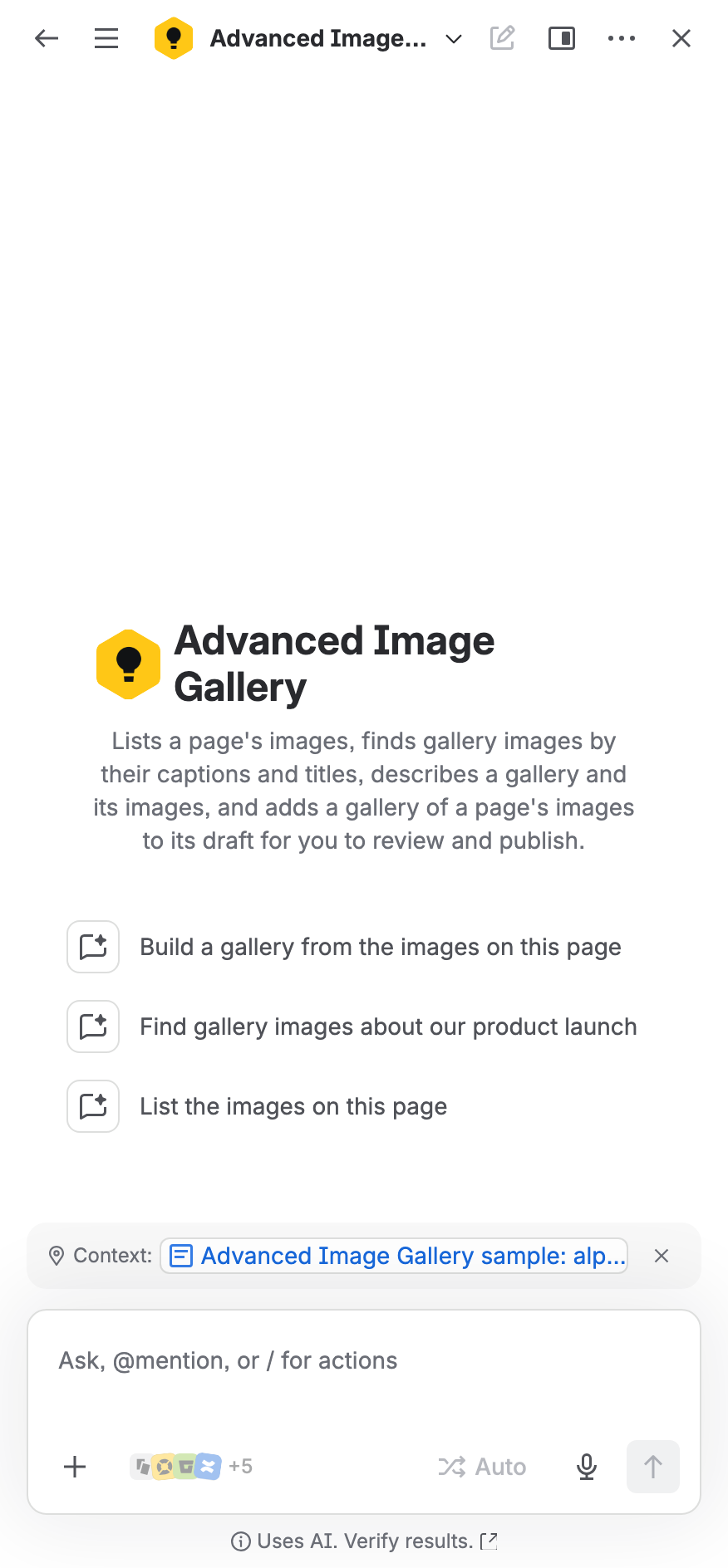
The app adds a Rovo agent named Advanced Image Gallery. In Rovo Chat it can list a page's images, find gallery images, describe a gallery and build a new gallery in a page's draft. Under each gallery, the button Ask Rovo about this gallery opens Chat with the agent and a question about that gallery.
Before you start
-
Rovo must be on for your Confluence site, and you need access to Rovo.
-
The app's AI features must be on. A Confluence administrator controls them in Admin settings.
-
The agent acts as you, with your own Confluence permissions. It reads only pages, attachments and galleries you can view, and changes only pages you can edit.
Open the agent
-
Select Chat in the Confluence top navigation and choose the Advanced Image Gallery agent.
-
In the Confluence editor, type
/aiand mention Advanced Image Gallery in the prompt. -
Under a gallery on a published page, select Ask Rovo about this gallery.
The agent offers these conversation starters:
-
Build a gallery from the images on this page
-
List the images on this page
-
Find gallery images about our product launch
What the agent can do
The agent works with the text that galleries store: file names, captions, alt text, copyright lines, gallery titles and descriptions. It does not look at the images themselves.
List the images on a page
Ask "List the images on this page" while Chat is open on the page, or give the link to another page. The agent shows each image as a preview with its file name, and its caption or alt text from the page's galleries. Long lists come in parts; ask for more to see the rest.
Find gallery images
Ask for images by what they show, for example "Find gallery images about the Berlin office". The agent searches the words galleries store and shows each match with its caption, its gallery's title and a link to its page.
-
A search covers the space Chat is open in, a space you name by its key, or the whole site.
-
It reads up to 100 galleries. If you need more, name a space.
-
It finds only galleries on pages you can view. On a page you may only view, it finds only the galleries of the published version.
Describe a gallery
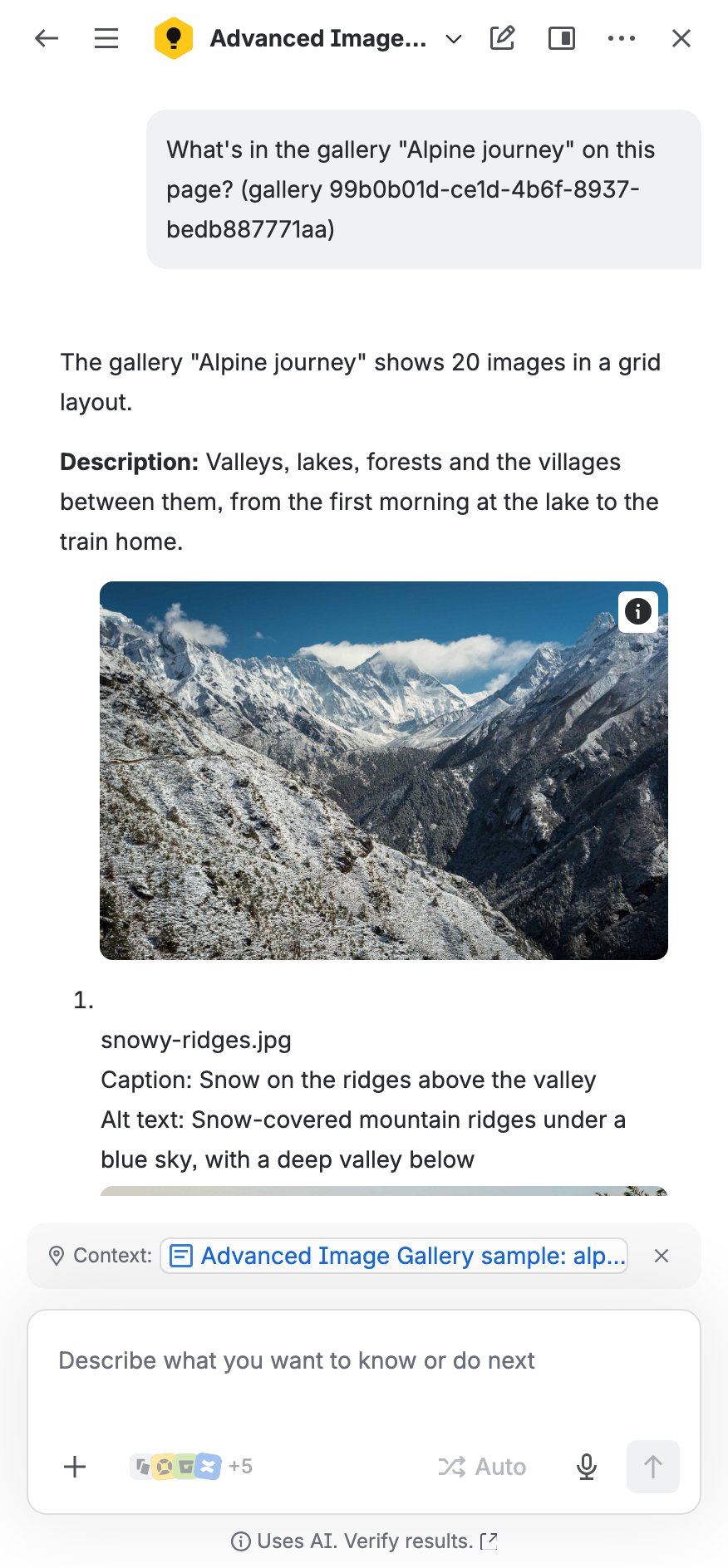
Ask what a gallery on a page shows. The agent answers with the gallery's title, description and layout, how many images it has, and each image's preview, file name, caption and alt text. If the page has several galleries, it lists them and asks which one. You can then ask follow-up questions, such as which images show the entrance; the agent answers from the gallery's texts.
Build a gallery
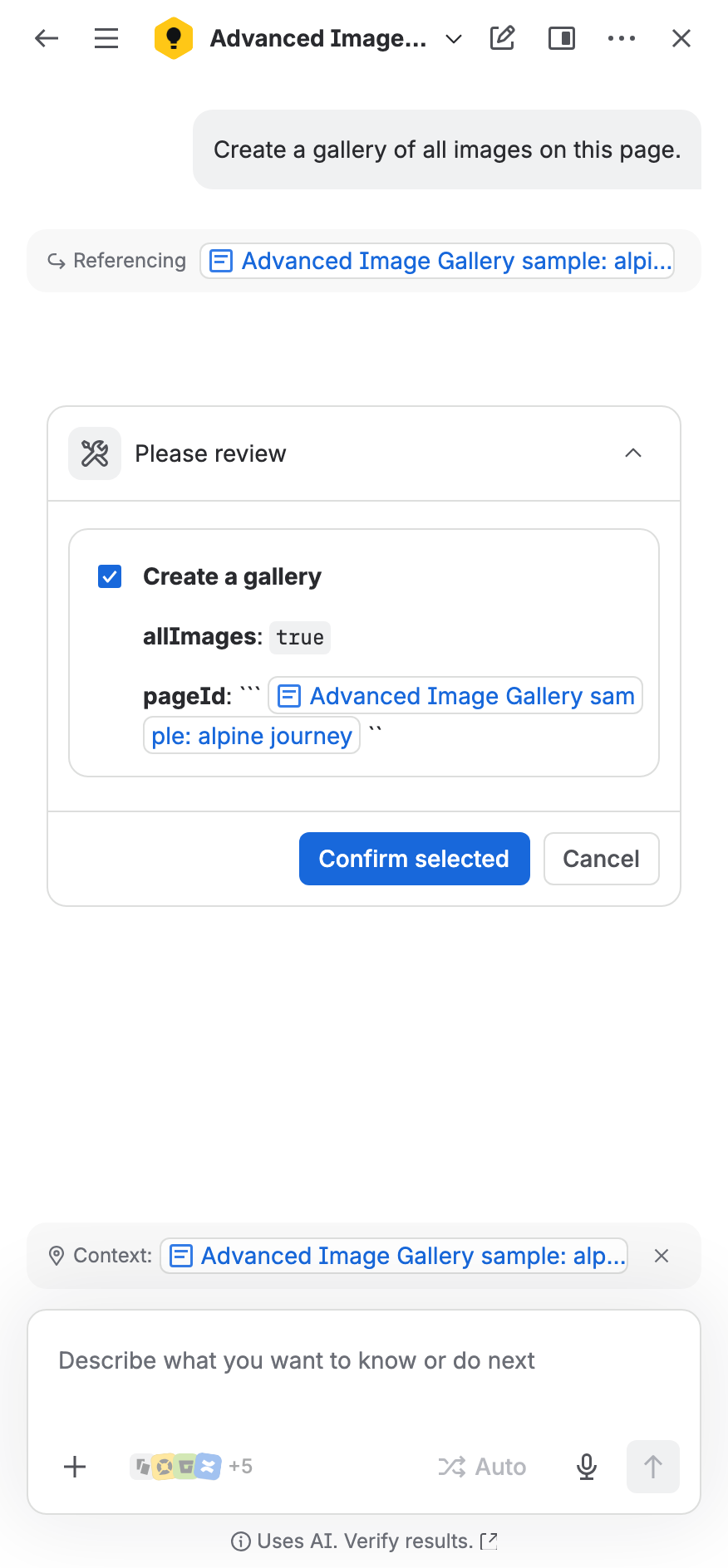
Ask the agent to build a gallery from a page's images, for example "Build a gallery from the images on this page".
-
For all of the page's images, the agent goes ahead at once. To choose images, it lists them first and asks which ones to use and in what order.
-
You can name a layout (grid, masonry or slideshow) and a title.
-
Rovo shows a Please review card. Select Confirm selected to go ahead, or Cancel.
-
The agent adds the gallery at the end of the page's draft. It never publishes the page.
-
Open the page in edit mode, review the gallery, and publish the page.
Limits
-
You need permission to edit the page, and the app needs an active license.
-
A gallery takes all images of the page, or up to 250 images you choose.
-
A gallery shows images attached to its own page, so the agent uses only that page's images.
-
If someone edited the page in the last minute, the agent refuses and tells you when to try again. This keeps it from replacing text an open editor has not saved yet.
-
Captions and alt text start empty. Add them in the gallery editor, where AI suggestions can help.
-
Rovo does not run this from automation rules.
Ask Rovo about this gallery
Under each gallery on a published page, Ask Rovo about this gallery opens Rovo Chat on the page with the agent. Chat sends a question that names the gallery, such as:
What's in the gallery "Site visit" on this page? (gallery 562dc3f5-a516-446b-a928-91034fef6c72)
The agent then describes that gallery, and you can ask follow-up questions.
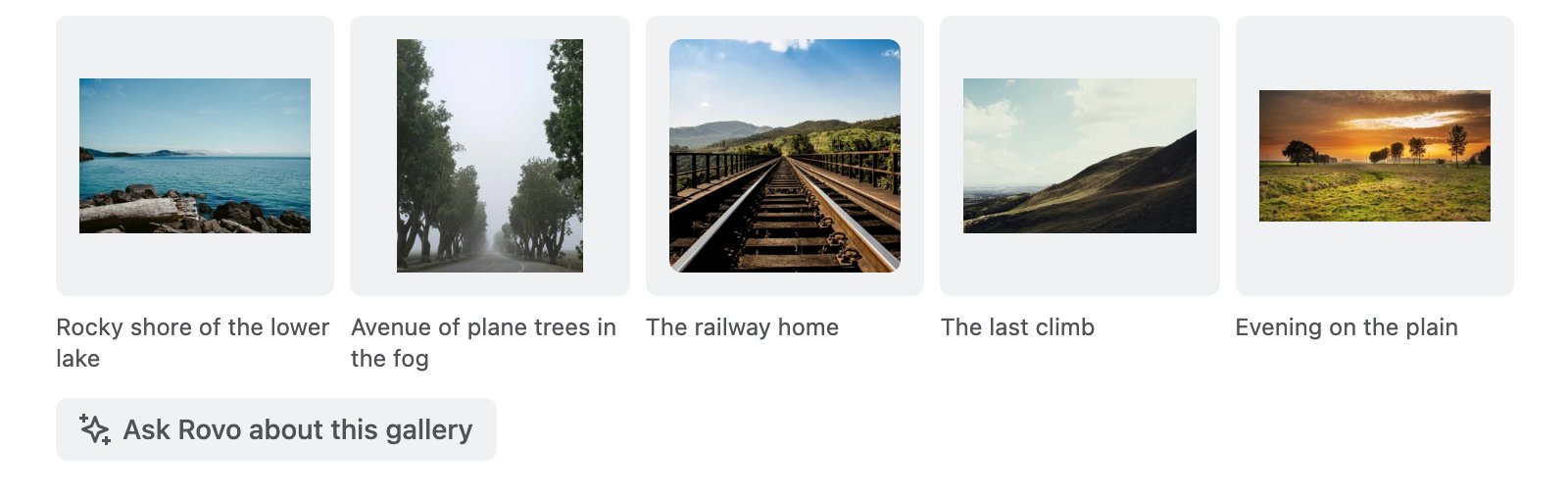
The button shows only when all of these are true:
-
you are signed in;
-
Rovo is on for the site;
-
the app's AI features are on;
-
you can see at least one of the gallery's images.
It does not show in the Confluence editor or to anonymous visitors. If Confluence can't open Chat, the button says "Rovo Chat could not be opened. Try again."
When AI features are off
When a Confluence administrator turns the app's AI features off:
-
the agent's actions answer "Gallery AI features are turned off by your administrator." and do nothing else;
-
the Ask Rovo about this gallery button no longer shows.
If XALT has paused the AI features, the agent answers "Gallery AI features are paused for now. Try again later."
The agent stays listed in Rovo while AI features are off.
Your data
The app does not receive your conversation with Rovo. It gets only the inputs of each action, such as a page link, a gallery ID or search words. Rovo and its language models are Atlassian's service. The AI usage policy explains what each action reads and returns, and what Atlassian states about Rovo.