
A gallery shows images attached to the page it is on. You add it as a macro, choose its images and layout in the gallery editor, and publish the page. Readers then see the gallery and can open each image in the lightbox.
Add a gallery
-
Open the page and select Edit.
-
Type
/and select Advanced Image Gallery. In the macro browser, the app is also listed under Media. -
The gallery editor, Edit gallery, opens on the Images tab.
To change a gallery later, edit the page, select the gallery and select Edit in its toolbar.
A page can hold several galleries. Each one has its own images and settings.
The gallery editor
The editor has three tabs: Images, Layout and Settings. Cancel and Save are always at the bottom.
Images tab
The tab shows the gallery's images as square tiles in display order. Select an image to see its details beside the tiles.
Add images
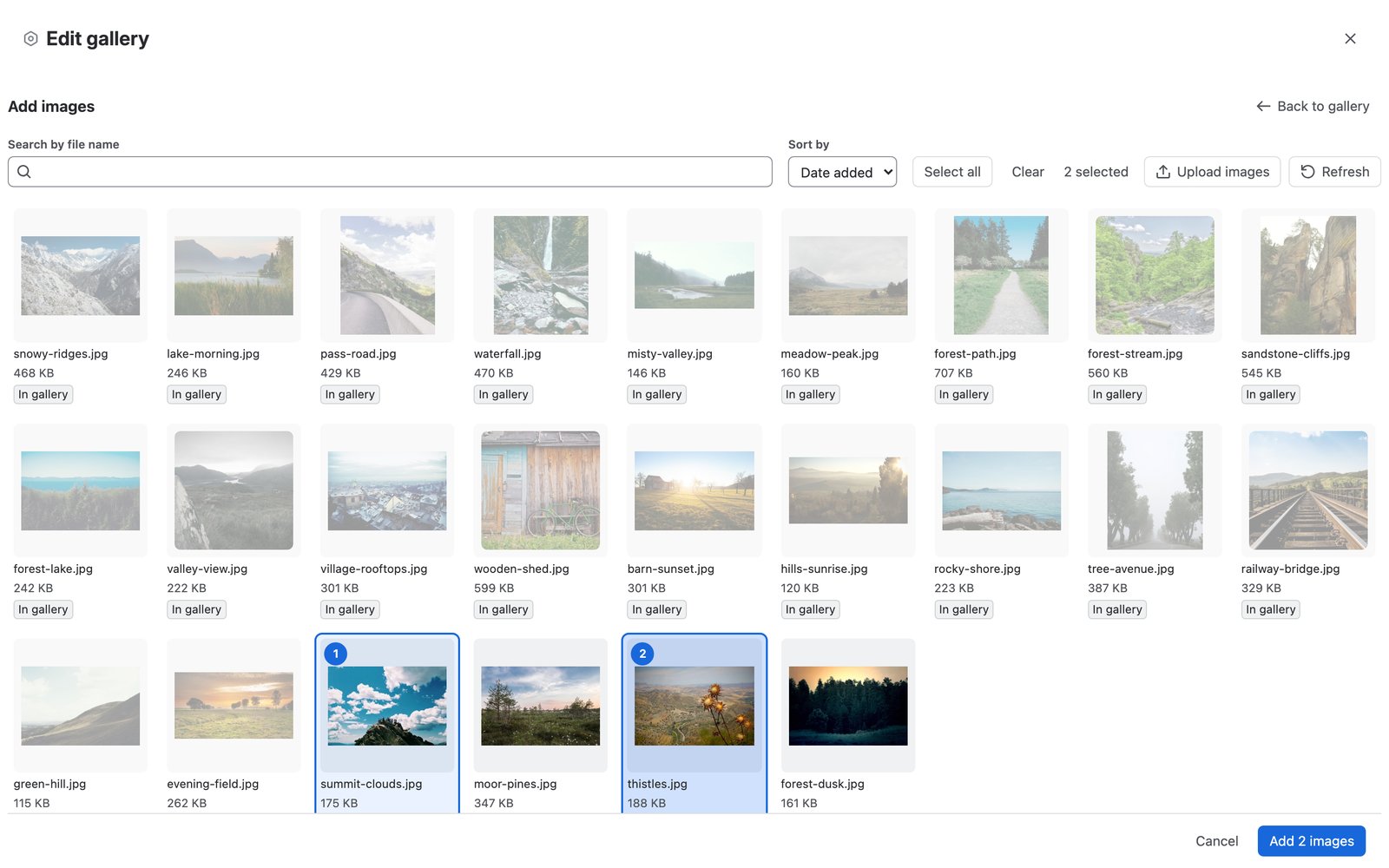
Select Add images to open the picker with the page's image attachments. You can search by file name, sort by Date added, Name or Size, and use Select all. Images join the gallery in the order you pick them. Select Add n images to finish, or Cancel to go back without adding.
Upload images
In the picker, select Upload images or drop image files onto it. The files are attached to the page one at a time, as you, and show selected in the picker. Uploaded images stay attached to the page even if you don't add them to the gallery. If the page already has an attachment with the same name, the upload gets a free name.
Accepted types are JPEG, PNG, GIF, WebP, SVG and HEIC, up to 50 MB per file. Confluence also checks that you may attach files to the page.
Order images
-
Drag one image, or several selected images, to a new place.
-
With the keyboard, focus an image and press Alt with an arrow key.
-
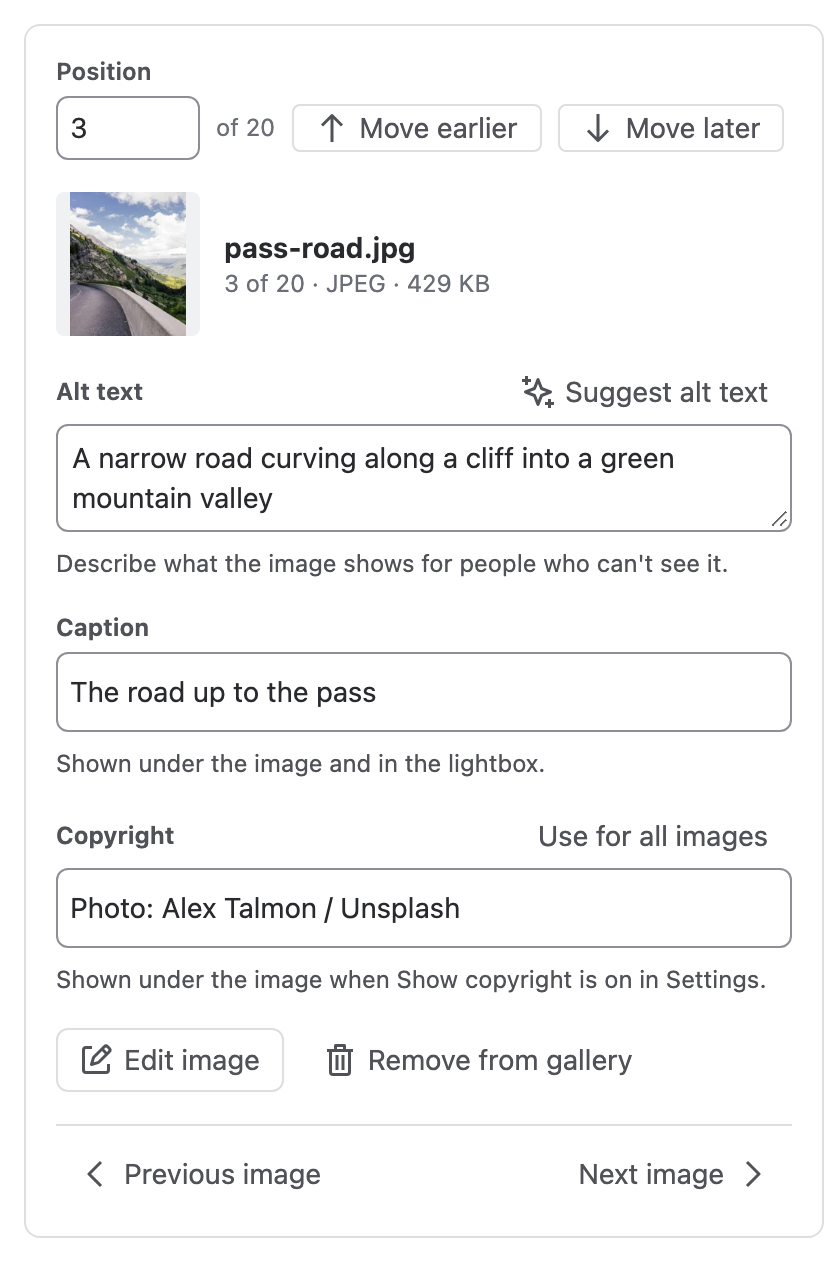
In the image details, use Move earlier and Move later.
-
Sort the whole gallery by file name, A to Z or Z to A.
Select several images
Shift-click selects a range, and Cmd-click or Ctrl-click adds one image. Cmd+A or Ctrl+A selects all of them. The side panel then offers Move to start, Move to end, Copyright for all selected and Remove.
Image details
For the selected image you can write:
-
Alt text: what the image shows, for people who use a screen reader.
-
Caption: shown under the image and in the lightbox.
-
Copyright: shown when the gallery shows copyright lines. Use for all images copies it to every image.
Use Previous image and Next image to move through the gallery without leaving the details. Remove from gallery takes the image out of the gallery, with Undo. The attachment stays on the page.
Filters
The chips Without alt text, Without caption and Not available show only the images that need attention. An image is Not available when the page no longer lists its attachment or Confluence refuses to show it.
Edit image
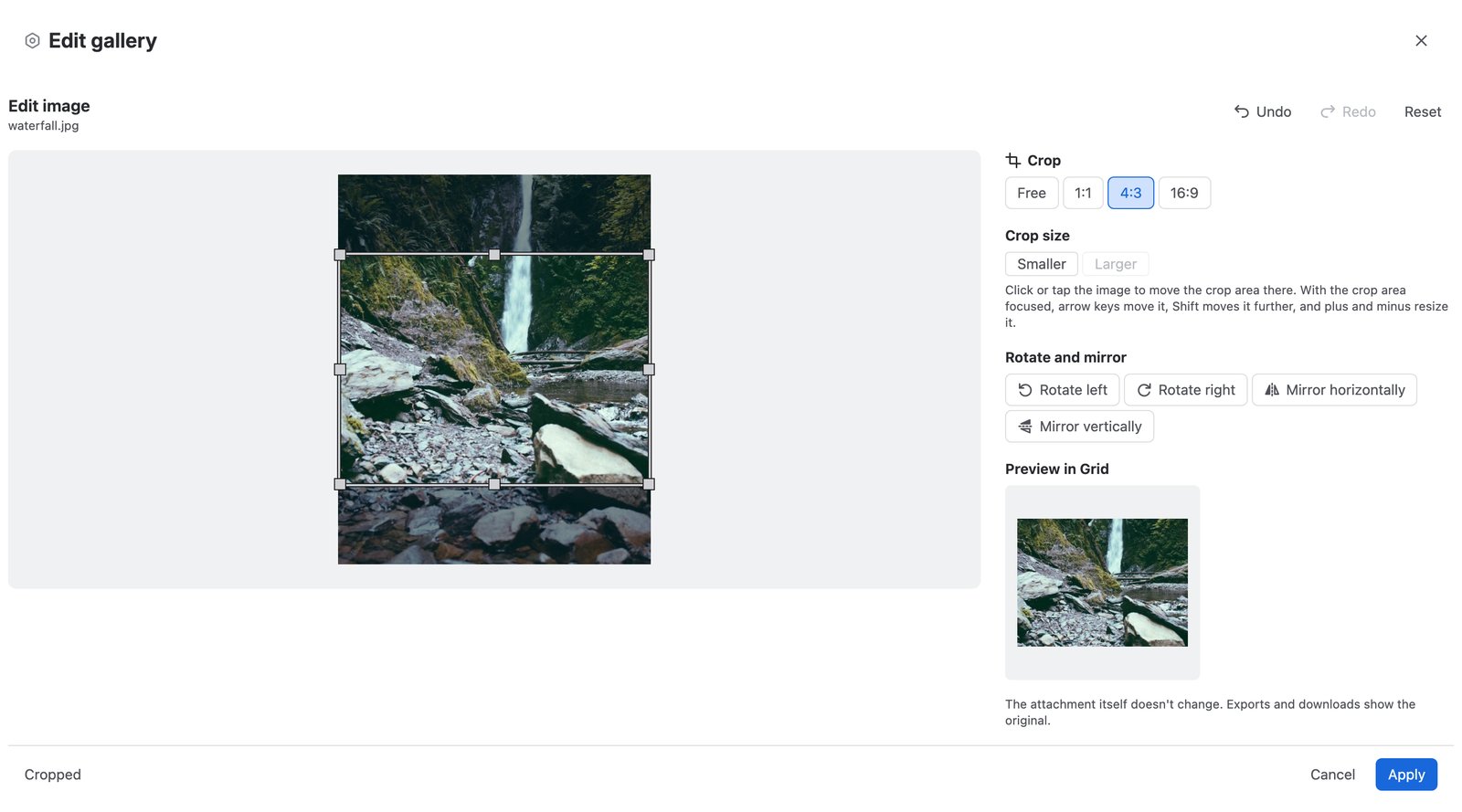
Select Edit image in the image details to crop, rotate or mirror the image.
-
Crop: Free, 1:1, 4:3 or 16:9. Move and resize the crop box with the pointer, or with the keyboard while the box has focus.
-
Rotate left and Rotate right, by 90 degrees.
-
Mirror horizontally and Mirror vertically.
-
Undo, Redo and Reset.
Select Apply to keep the edit, or Cancel to leave without it.
The attachment itself never changes. The gallery stores the edit and applies it when it shows the image. PDF and Word exports and downloads show the original attachment.
Layout tab
-
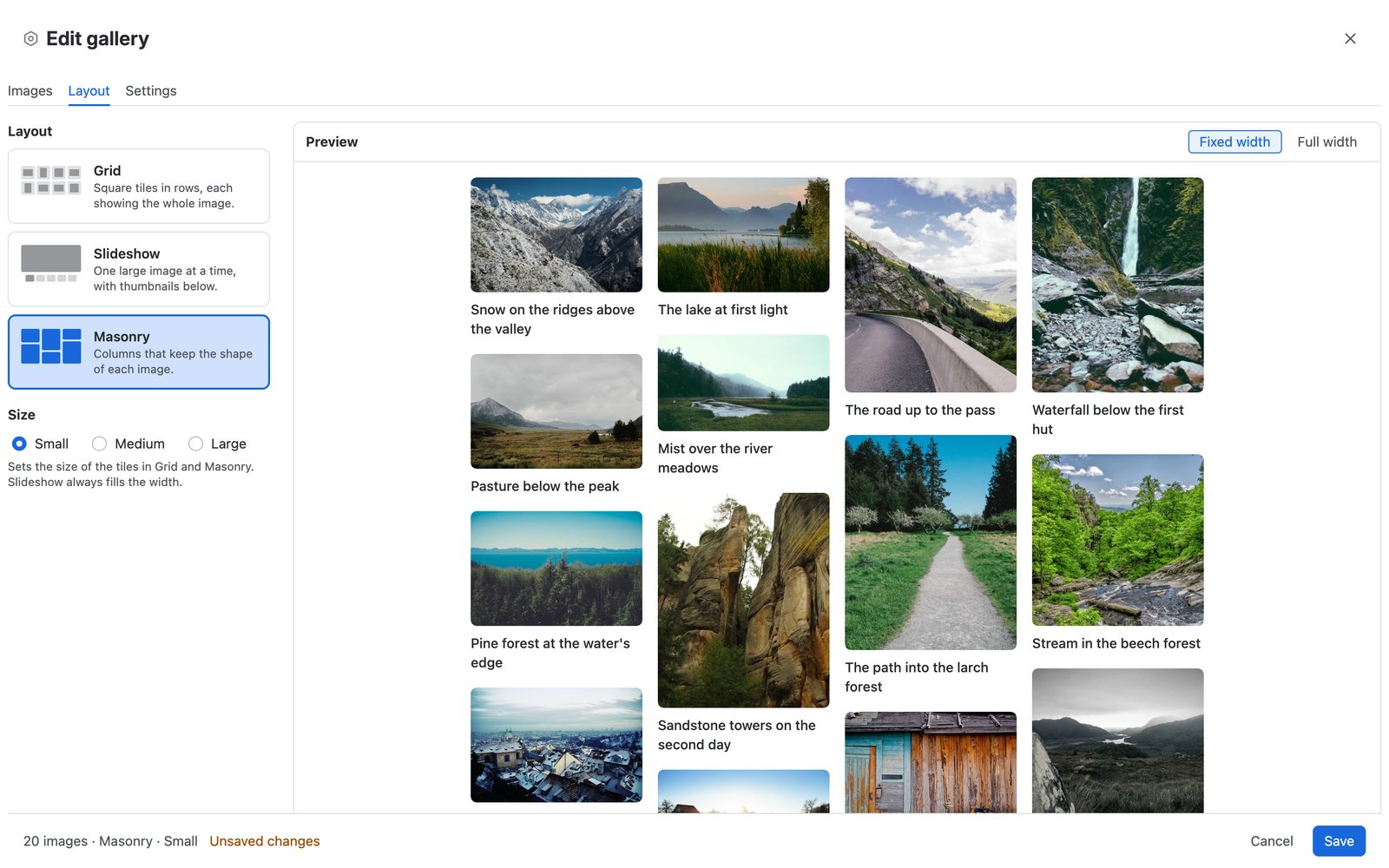
Grid: square tiles in rows, each showing the whole image.
-
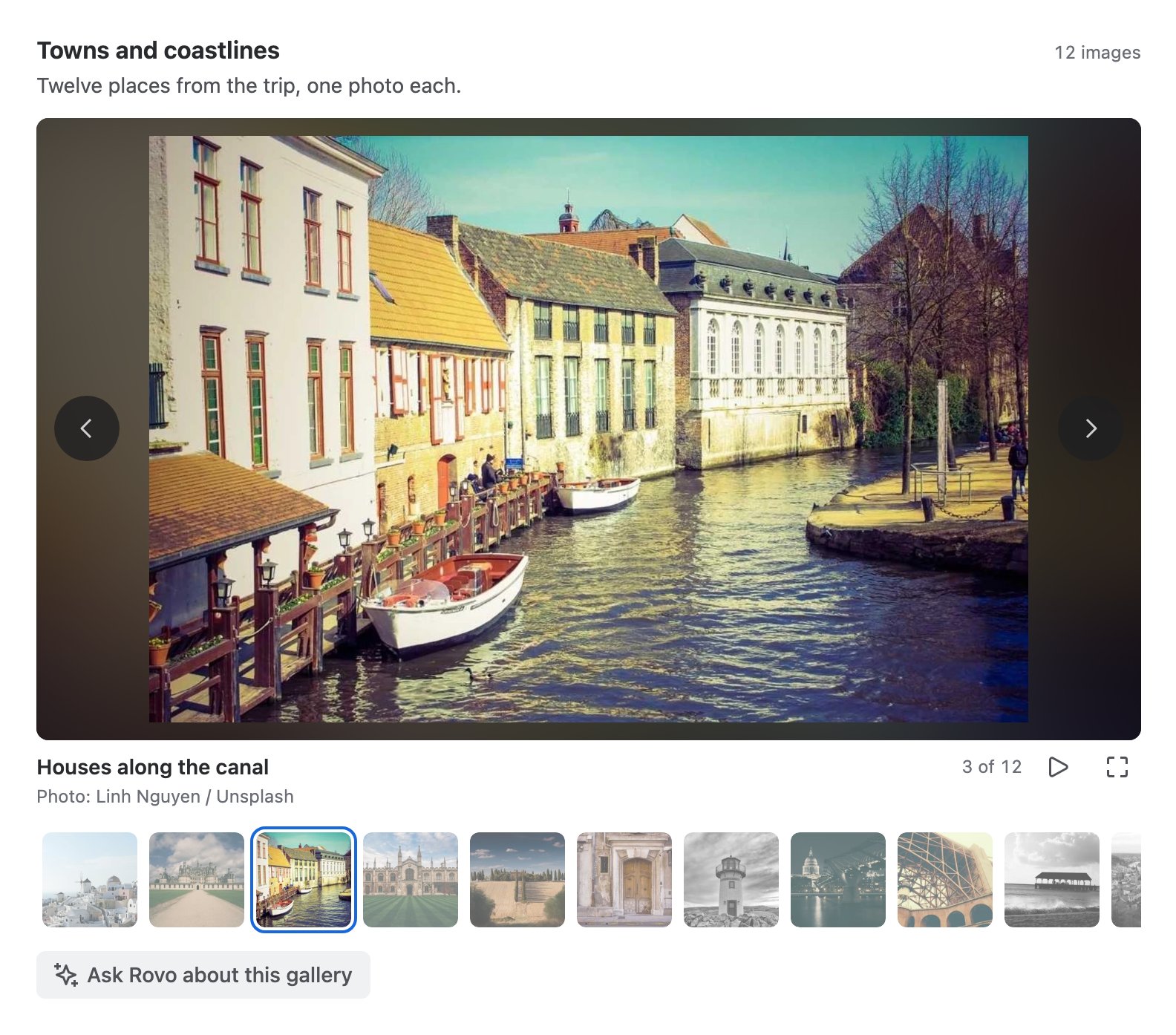
Slideshow: one large image at a time, with thumbnails below.
-
Masonry: columns that keep the shape of each image.
Size (Small, Medium or Large) sets the size of the tiles in Grid and Masonry. Slideshow always fills the width.
The preview beside the choices shows the gallery as readers will see it. Switch it between Fixed width and Full width to match the page's width setting.
Settings tab
-
Title: optional, shown above the gallery with its image count. Up to 200 characters.
-
Description: shown above the images. Up to 5,000 characters.
-
Show copyright: shows each image's copyright line under it and in the lightbox.
-
All image attachments of this page: the gallery shows every image attached to the page, in upload order, including images attached later. Adding, removing and reordering are off in this mode. Alt text, captions, copyright lines and image edits still work per image.
Save and cancel
Save stores the gallery and closes the editor. Publish the page to show the changes to readers.
Cancel asks Discard your changes? when you changed something. Choose Keep editing or Discard.
Confluence's own close button (X) in the editor's header closes the editor at once, without asking. Your unsaved changes aren't lost. The editor keeps them in your browser for up to 7 days. The next time you open that gallery in the same browser, the editor asks Restore unsaved changes from time? with Restore and Discard. If someone saved the gallery after your changes were kept, it adds This gallery was saved since. Restoring replaces that version.
If someone else saves the gallery while you edit it, your save is refused with a message. Close the editor and open it again to see their changes.
Limits
-
A gallery holds up to 1,000 images. Long texts use more room, so a gallery with many long captions may hold fewer; the editor says when a gallery is too large to save.
-
Each caption, alt text and copyright line holds up to 1,000 characters.
-
A gallery in the All image attachments of this page mode shows the page's first 250 image attachments, oldest first.
-
A gallery shows images attached to its own page only.
AI suggestions in the editor
When AI features are on, the editor can suggest texts:
-
Suggest alt text, beside the alt text of the selected image.
-
Write a description, beside the gallery's description on the Settings tab.
The suggestion appears in a card under the field. Choose Accept to put it in the field, Edit to put it in the field and change it, or Dismiss to close the card. Nothing is stored with the gallery until you save.
The model works from text: file names, captions, alt text, the gallery title and the page's text. It never sees the images, and each card says so: "Suggestion: the model has not seen the image." A description appears as it is written and can take a few seconds.
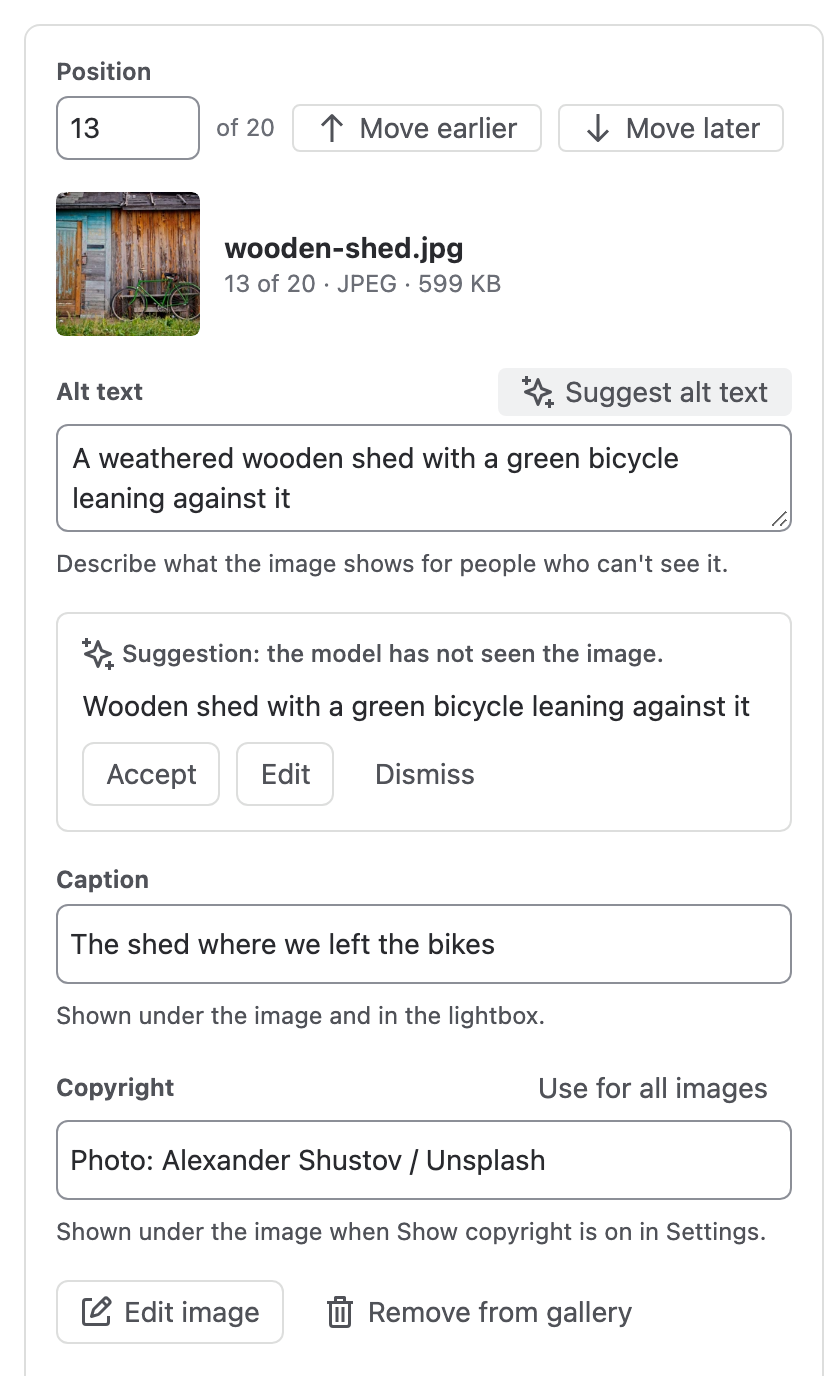
The buttons are not offered in the template editor, without an active license, or when AI features are off. Suggest alt text is off for an image that is not available, and Write a description needs images or a title first. When the site's AI allowance is used up, the card says so. See Admin settings and the AI usage policy.
Reading a gallery
On the published page, the gallery shows its title with the image count and its description, then the images in the chosen layout with their captions and, when turned on, copyright lines.
Slideshow
Move between images with the arrows, the thumbnails, a swipe or the arrow keys. Play steps to the next image every 5 seconds. It waits while the pointer is over the slideshow or keyboard focus is inside it, and shows Paused beside the position. It stops on the last image; Play there starts again from the first. View full screen opens the lightbox.
Lightbox
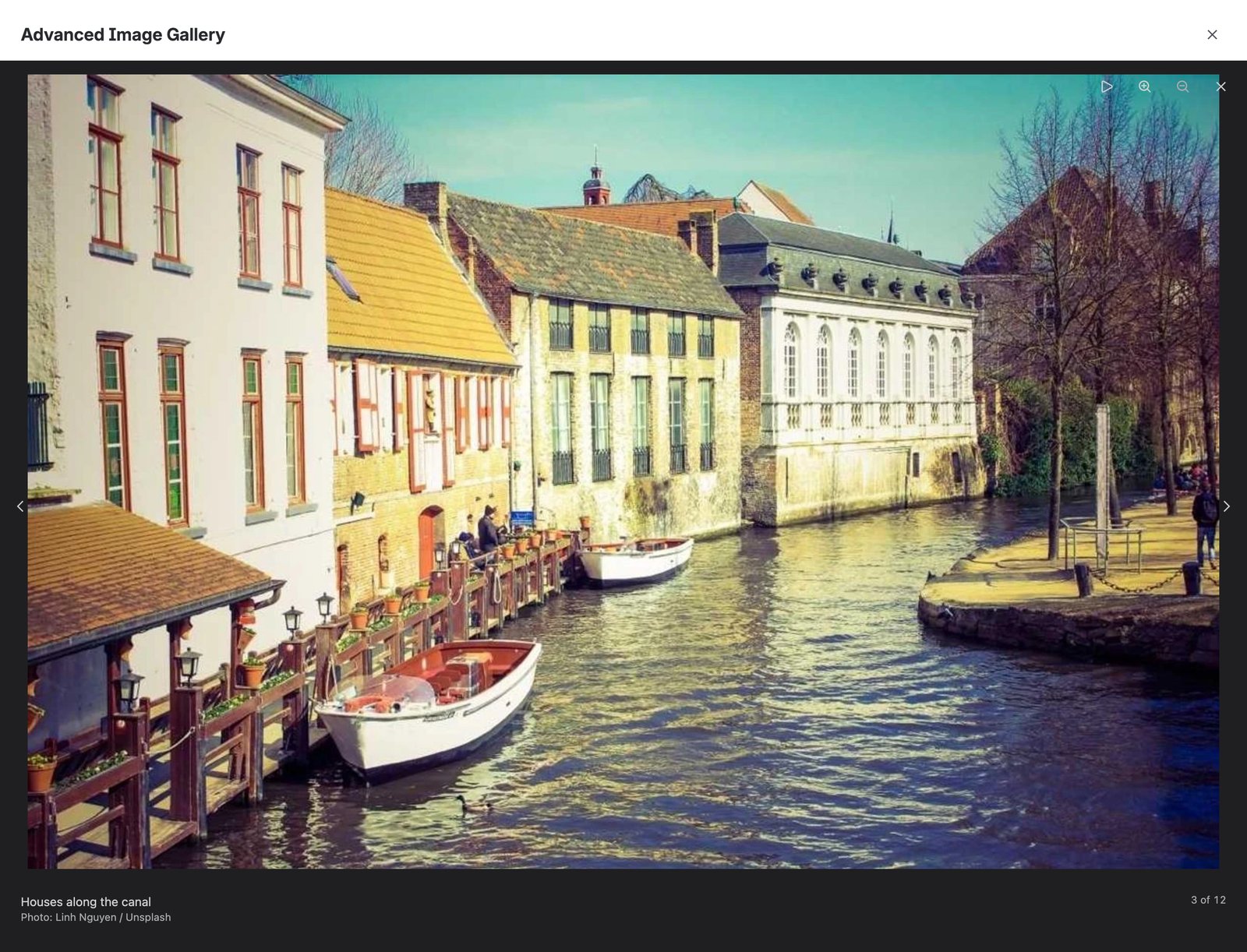
Select a tile or a slide to open the image in the full-screen lightbox, which is dark in both themes.
-
Previous image and Next image, or the arrow keys, move through the gallery.
-
Zoom in and out to see details.
-
The band below the image shows the caption, the copyright line when the gallery shows it, and the position, such as "3 of 12".
-
Play, or the Space key, plays the images like the slideshow. The lightbox never starts playing by itself.
-
Escape or the close button closes the lightbox, and focus returns to the tile you opened it from.
What readers may see
-
A reader sees a gallery when they may view its page. Images whose attachments Confluence hides from them are left out.
-
Anonymous visitors see galleries on pages that are open to anonymous visitors.
-
In the Confluence editor, the gallery shows as readers will see it, but tiles do not open the lightbox.
|
Message |
Why |
|---|---|
|
"There are no images in this gallery yet." |
The gallery is empty or was never saved. |
|
"You can't see the images in this gallery." |
Confluence doesn't let you see any of its images, or they are no longer available. |
|
"This image can't be shown here." |
This one image can't be displayed. The other images are not affected. |
|
"This gallery's data could not be found." |
The page names a gallery the app doesn't have, for example after the page was moved from another site. Edit the gallery to start a new one. |
|
"This gallery's settings could not be read." |
The app can't read the gallery's settings. The editor then turns Save off so the images are kept. If this persists, contact support. |
|
"The gallery could not be loaded." |
Loading failed. Select Try again. |
Pages, copies and templates
-
Copied pages get their own gallery. Changes to the copy don't affect the original, and the other way round.
-
In a page template you can set the layout, the settings and the All image attachments of this page mode, but not pick images. Each page created from the template gets its own gallery with that page's own attachments.
-
Trashed attachments are skipped in the gallery and come back when the attachment is restored. An attachment that is purged leaves the gallery.
-
A gallery removed from a page keeps its data while the page exists, so restoring an older page version brings it back.
-
Restoring an older page version brings back that version's gallery with its current images and texts, not the ones it had at that version.
-
Purging a page deletes its galleries.
PDF and Word export
When a page is exported to PDF or Word, each gallery appears as its images in gallery order, each with its caption. Exports show the original attachments, without crops, rotations or mirroring. The gallery is exported only for people who may view the page.
Without an active license
Readers keep seeing galleries. The editor opens with a banner, and Save is turned off until the license is active again.