
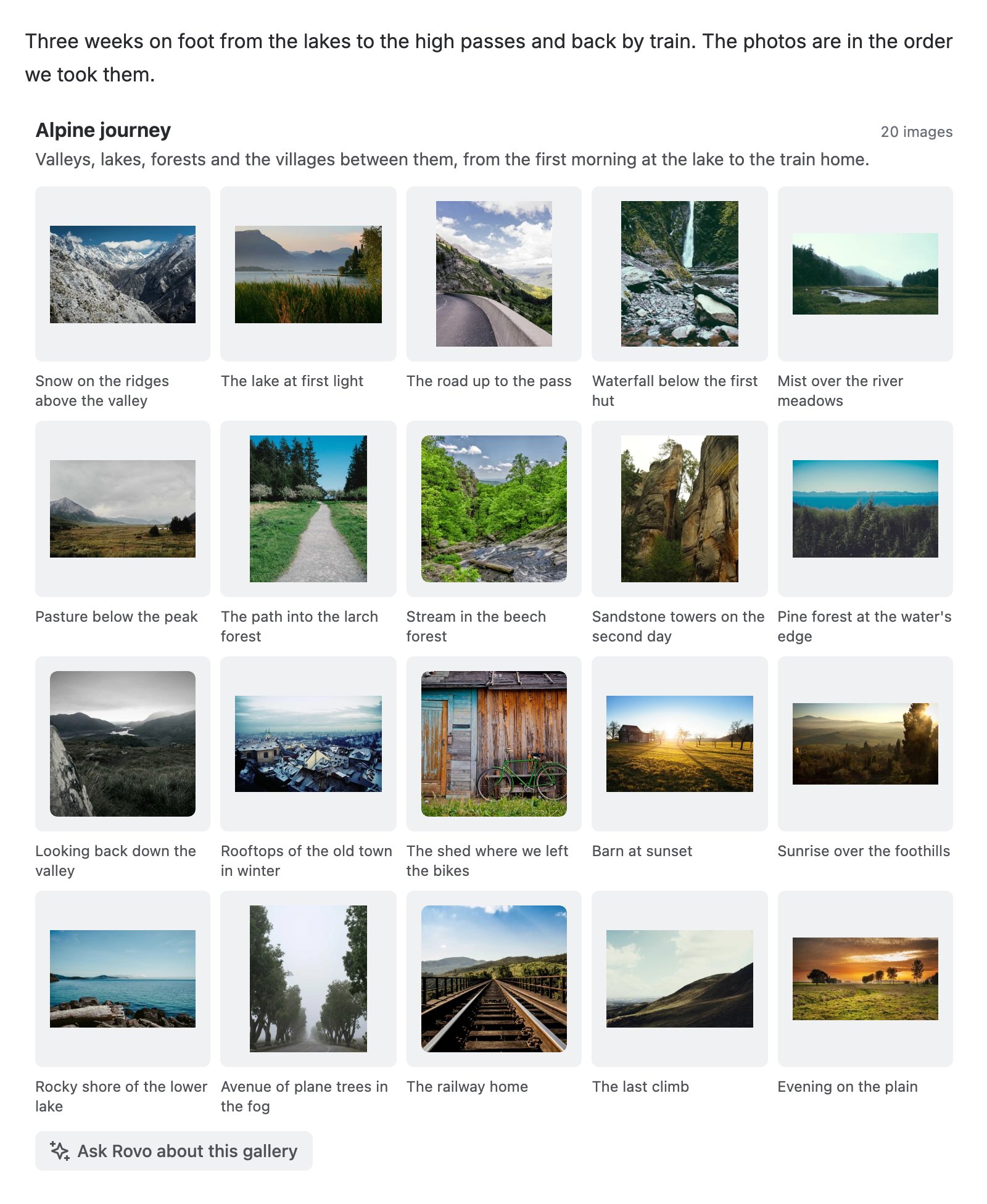
Advanced Image Gallery shows the images attached to a Confluence page as a gallery. Readers see a grid, masonry or slideshow layout and can open each image in a full-screen lightbox. Editors pick and order the images, write captions, alt text and copyright lines, and crop or rotate an image without changing the attachment.
The app also has a Rovo agent. In Rovo Chat it lists a page's images, finds gallery images by their captions, describes a gallery and builds a new gallery for you to review.
Who does what
|
Role |
Needs |
Does |
|---|---|---|
|
Reader |
permission to view the page |
sees galleries, opens the lightbox, asks Rovo about a gallery |
|
Editor |
permission to edit the page |
adds and edits galleries, accepts AI suggestions |
|
Confluence administrator |
Confluence administrator rights |
installs the app, turns AI features on or off, sees usage |
|
Rovo user |
Rovo on for the site, and access to Rovo |
talks to the gallery agent in Rovo Chat |
Install the app
-
Install Advanced Image Gallery from the Atlassian Marketplace and approve the permissions it asks for.
-
After the install, Confluence offers a link to the app's Get started page. You can open it again later from Manage apps > Advanced Image Gallery > Get started.
AI features are on after the install. To turn them off before anyone uses them, go to Manage apps > Advanced Image Gallery > Configure. See Admin settings.
Add your first gallery
-
Open a page and select Edit.
-
Type
/and select Advanced Image Gallery. The gallery editor opens. -
Select Add images and pick images attached to the page, or upload new ones.
-
Put the images in order and add alt text, captions and copyright lines.
-
On the Layout tab, choose Grid, Slideshow or Masonry and a size.
-
Select Save, then publish the page. Readers now see the gallery.
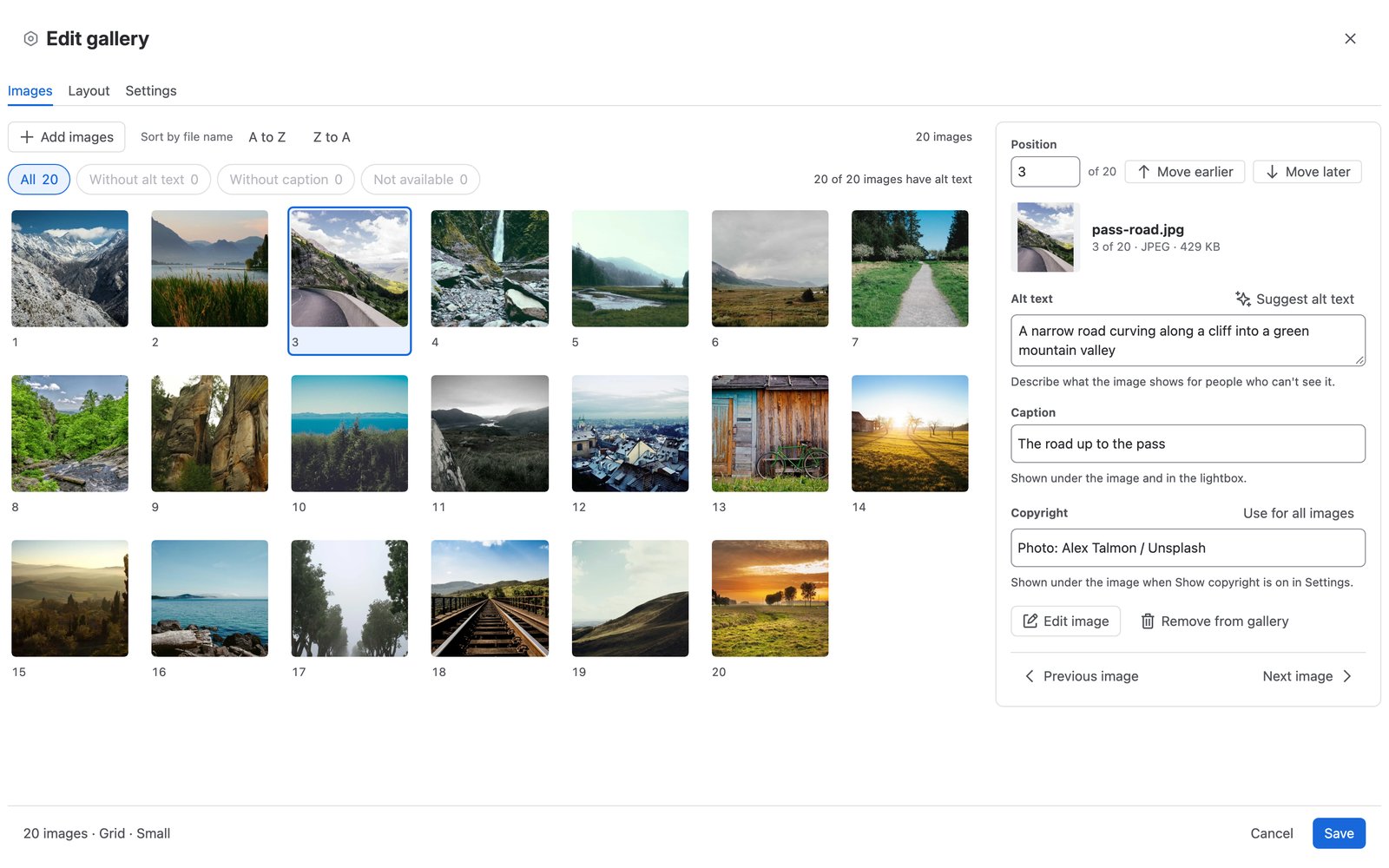
Galleries describes the editor and the layouts in full.
Ask the gallery agent
-
Under a gallery on a published page, select Ask Rovo about this gallery.
-
For a page's images, select Chat in the Confluence top navigation and choose the Advanced Image Gallery agent.
Next steps
-
Galleries: the editor, the layouts and the lightbox.
-
Admin settings: the AI switch and usage counts.
-
AI usage policy: what the AI features do with your data.
-
Privacy and security: where the app keeps data and who can reach it.
-
Support and contact: how to get help.