
The app has two pages for Confluence administrators, both under Manage apps > Advanced Image Gallery:
-
Get started: what the app does and how to start.
-
Configure: the settings page, with the license, the AI switch, the AI suggestions' allowance, usage counts and the AI usage policy.
Only Confluence administrators see these pages. The app also checks on every request that the person is a Confluence administrator before it shows or changes a setting.
Get started
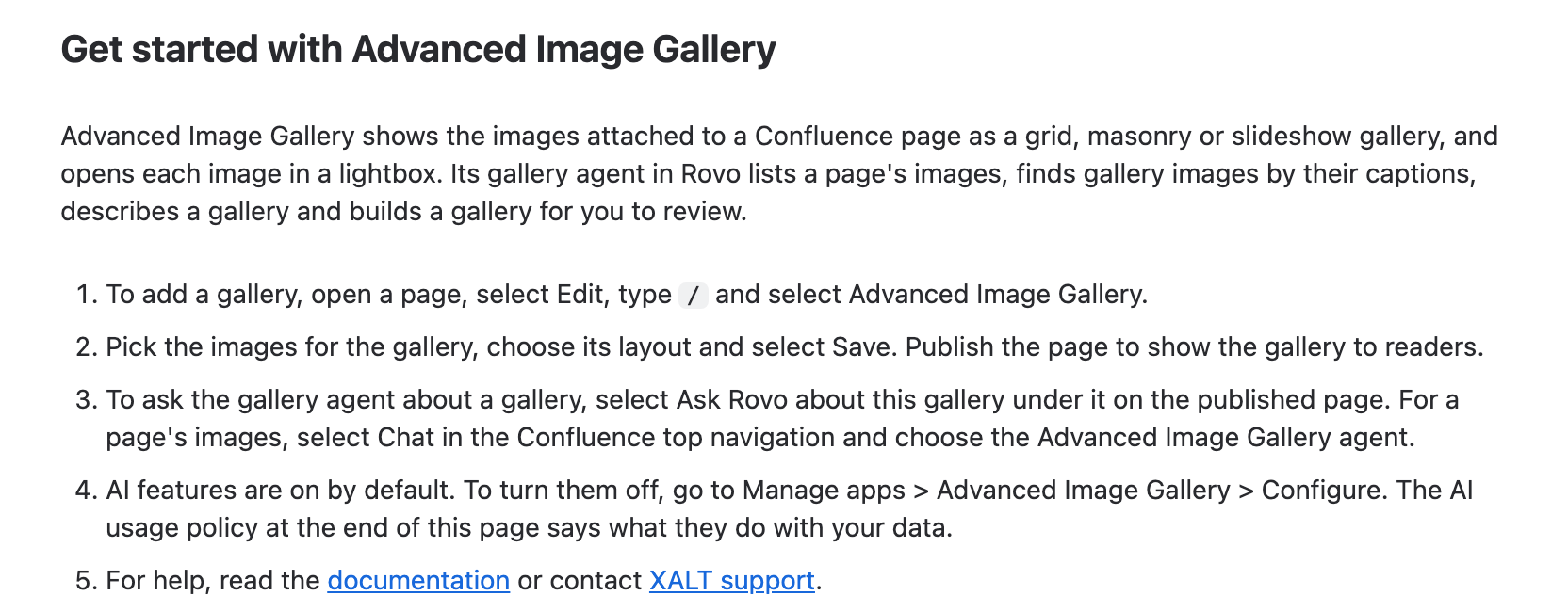
Confluence links the Get started page after the install. Later, open it from Manage apps > Advanced Image Gallery > Get started.
It explains what the app does and gives five steps: add a gallery, pick images and publish, ask the gallery agent, where to turn AI features off, and where to get help. The full AI usage policy follows the steps.
The settings page
Open Manage apps > Advanced Image Gallery > Configure. Each section loads on its own, so one that fails to load leaves the others working.
License and environment
Shows whether the app's license is Active, Inactive or No license, and the environment.
Without an active license, readers keep seeing galleries, and the agent can still list, search and describe. Editors can open the gallery editor but not save, and the agent can't build new galleries.
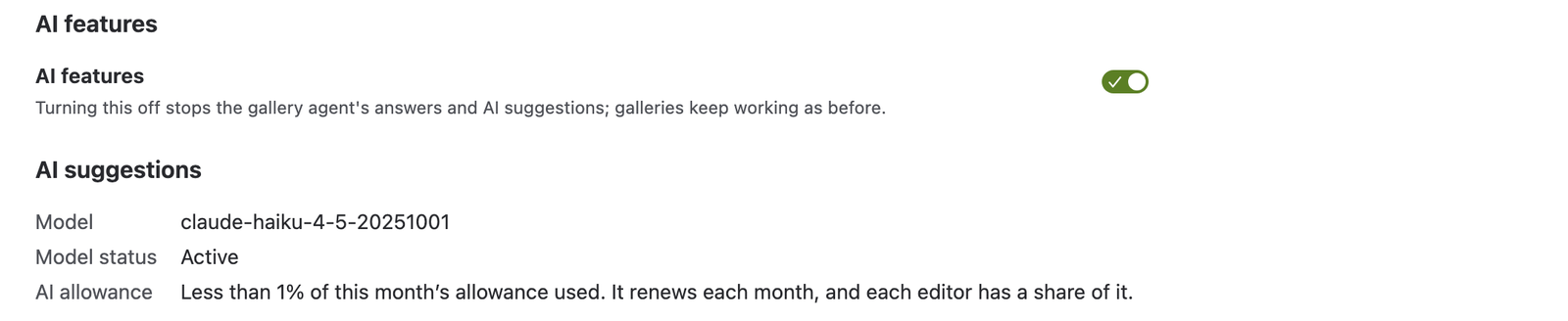
AI features
One switch turns all of the app's AI features on or off for the site. They are on after the install. The switch saves as soon as you change it and confirms with "Saved. AI features are on." or "Saved. AI features are off."
When AI features are off:
-
the gallery agent's actions answer "Gallery AI features are turned off by your administrator." and do nothing else;
-
pages no longer show Ask Rovo about this gallery;
-
the gallery editor no longer offers Suggest alt text or Write a description.
Galleries, the gallery editor, upload and exports keep working. Alt text and descriptions that editors already accepted stay; they are the editors' text now. The change applies from the next request.
If the app can't read the stored setting, AI features stay off and the page says so. Select Keep AI features off, or turn them on with the switch.
The section can also show these notes:
-
"Rovo is turned off for this site, so the gallery agent isn't available."
-
"The app's developers have paused AI features for now, so they stay off whatever this setting says."
-
"The app's developers have paused AI suggestions for now, so editors don't see them whatever this setting says. The gallery agent and Ask Rovo are not affected."
The last two appear when XALT has used one of its emergency switches, described in the AI usage policy.
AI suggestions
Shows the language model behind Suggest alt text and Write a description, how Atlassian lists that model (Model status), and how much of the site's AI allowance is used.
The AI allowance limits how much AI text the site can request:
-
Without the app's Advanced edition, the site gets one allowance that does not renew.
-
With the Advanced edition, the allowance renews each month, and each editor has a share of it.
When it is used up, editors see "This site has used its AI allowance, so AI suggestions are no longer available." The gallery agent and Ask Rovo about this gallery do not count against it.
Usage
A table of Galleries, Images and AI calls for the Whole site and for each space.
-
AI calls counts the agent's actions and AI text requests, and the page says since when they have been counted.
-
Images leaves out galleries in the All image attachments of this page mode, because their images are the page's attachments; the page says how many such galleries there are.
-
A space that is gone, or that you can't see, shows as Space not available with its ID. Calls tied to no space show as Not in a space.
AI usage policy
Select Read the AI usage policy to read the full AI usage policy on the page.
Rovo's own controls
In Atlassian Administration, under AI and Rovo > Access, an admin can block Rovo for Confluence. That turns off the gallery agent and Ask Rovo about this gallery, but not the AI suggestions in the editor, which do not use Rovo. To turn those off, use the app's AI switch.
Uninstalling
When you uninstall the app, pages keep their gallery macros. Privacy and security says what happens to the app's stored data.